Dynamic camera targets
2020/10/25
- Type
- Learning Resource
- Format
- Tutorial
- Version
- Godot 3.x
- Code
- MIT
- Game Assets
- CC BY-NC-SA
- All else
- 2016-2026, GDQuest© - All rights reserved
- Created
- Updated
- 2020/10/25
- 2020/10/25
In this tutorial, you will learn to make the camera dynamically switch between following a character and anchoring to a given location. You will:
You can find the full project here.
In short, we have a camera that follows a target point using the arrive steering behavior, a vector math formula that makes an object smoothly move towards a target. The target can be the character the camera is attached to or any global position.
When entering and leaving specific areas, we change the camera's target.
We created three nodes to build the system:
We set these three 2D physics layers in Project -> Project Settings -> 2D Physics: actors, obstacles, and anchors.
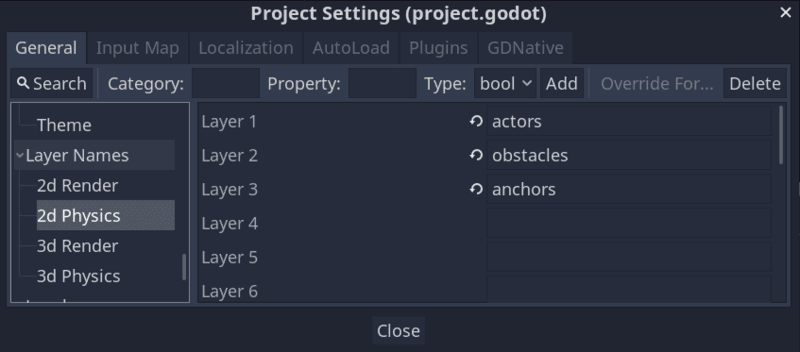
These layers make it easier to manage collisions as the AnchorDetector2D should only detect areas in the anchors layer.
Let's start with the anchor area as the detector and camera depend on it.
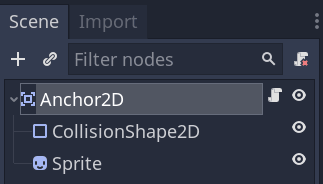
Create a new scene with a root Area2D node named Anchor2D with a CollisionShape2D as its child. The collision shape defines the anchor area. We also used a Sprite node to visualize the area's bounds when running the game.
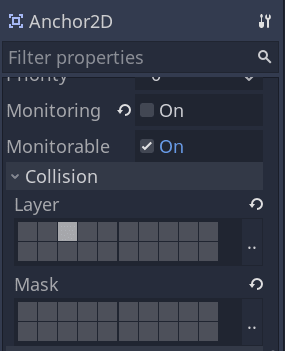
Set the Anchor2D_'s Collision -> Layer to anchors only and turn off Monitoring and any Collision -> Mask. Doing so makes the anchor detectable, but it doesn't detect other physics bodies and areas itself.
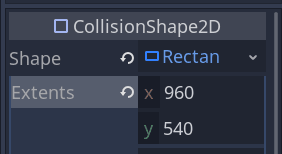
We want our anchors to be rectangular areas. To that end, add a RectangleShape2D to the CollisionShape2D_'s Shape property. You can open the resource and set its Extents to half the screen resolution, so the area covers one screen by default. We set it to 960x540 as our project has a resolution of 1920x1080.
Attach a new script to Anchor2D with the following code:
class_name Anchor2D
extends Area2D

# The camera's target zoom level while in this area.
export var zoom_level := 1.0We'll use another area to detect anchors. Create a new scene with another Area2D node as root, this time name it AnchorDetector2D. Add a CollisionShape2D node as a child.
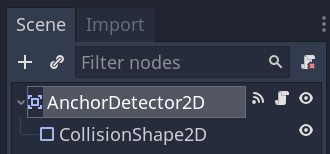
The size of the CollisionShape2D should be a little smaller than the CollisionShape2D of the Player.
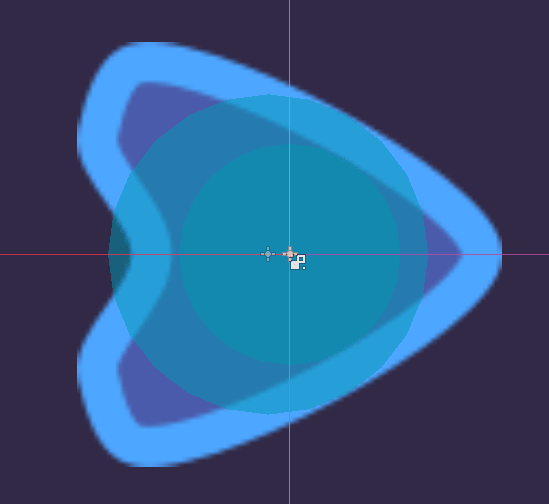
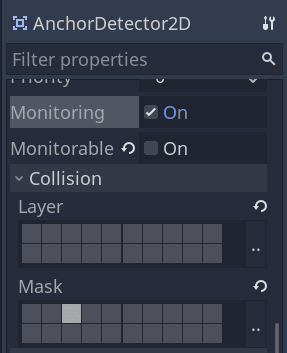
This one is going to monitor for anchor areas. Select AnchorDetector2D and set its properties as follows:
Connect the signals area_entered and area_exited of the AnchorDetector2D to itself. We will use this to detect when it enters or leaves an Anchor2D area.
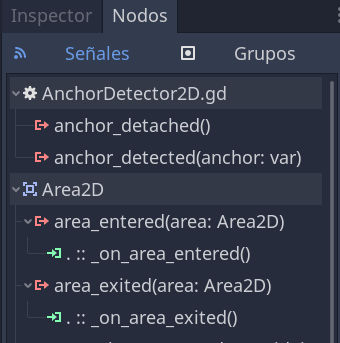
When the node enters or leaves an Anchor2D, it will emit the signal anchor_detected or anchor_detached, respectively, that we will listen to on the camera. Attach a script to the AnchorDetector2D.
class_name AnchorDetector2D
extends Area2D

# Emitted when entering an anchor area.
signal anchor_detected(anchor)
# Emitted after exiting all anchor areas.
signal anchor_detached


func _on_area_entered(area: Anchor2D) -> void:
	emit_signal("anchor_detected", area)


# When exiting an area, we have to ensure we're not entering another anchor.
func _on_area_exited(area: Anchor2D) -> void:
	var areas: Array = get_overlapping_areas()
	# To do so, we check that there's but one overlapping area left and that it's
	# the one passed to this callback function.
	if get_overlapping_areas().size() == 1 and area == areas[0]:
emit_signal("anchor_detached")Create a new scene with a Camera2D node as root and name it AnchorCamera2D. In the Inspector, set the camera node as Current, so Godot uses it as our game's camera.
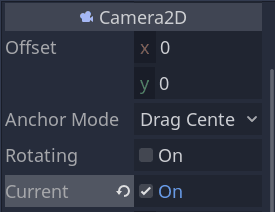
Attach a script to the AnchorCamera2D with the following code:
class_name AnchorCamera2D
extends Camera2D

# Distance to the target in pixels below which the camera slows down.
const SLOW_RADIUS := 300.0

# Maximum speed in pixels per second.
export var max_speed := 2000.0
# Mass to slow down the camera's movement.
export var mass := 2.0

var _velocity = Vector2.ZERO
# Global position of an anchor area. If it's equal to `Vector2.ZERO`,
# the camera doesn't have an anchor point and follows its owner.
var _anchor_position := Vector2.ZERO
var _target_zoom := 1.0


func _ready() -> void:
	# Setting a node as top-level makes it move independently of its parent.
	set_as_toplevel(true)


# Every frame, we update the camera's zoom level and position.
func _physics_process(delta: float) -> void:
	update_zoom()

	# The camera's target position can either be `_anchor_position` if the value isn't
	# `Vector2.ZERO` or the owner's position. The owner is the root node of the scene in which we
	# instanced and saved the camera. In our demo, it's the Player.
	var target_position: Vector2 = (
		owner.global_position
		if _anchor_position.is_equal_approx(Vector2.ZERO)
		else _anchor_position
	)

	arrive_to(target_position)


# When entering an `Anchor2D`, we receive the anchor object and change our
# `_anchor_position` and `_target_zoom`
func _on_AnchorDetector2D_anchor_detected(anchor: Anchor2D) -> void:
	_anchor_position = anchor.global_position
	_target_zoom = anchor.zoom_level


# When leaving the anchor, the zoom returns to 1.0 and the camera's center to
# the player.
func _on_AnchorDetector2D_anchor_detached() -> void:
	_anchor_position = Vector2.ZERO
	_target_zoom = 1.0


# Smoothly update the zoom level using a linear interpolation.
func update_zoom() -> void:
	if not is_equal_approx(zoom.x, _target_zoom):
		# The weight we use considers the delta value to make the animation frame-rate independent.
		var new_zoom_level: float = lerp(
			zoom.x, _target_zoom, 1.0 - pow(0.008, get_physics_process_delta_time())
		)
		zoom = Vector2(new_zoom_level, new_zoom_level)


# Gradually steers the camera to the `target_position` using the arrive steering behavior.
func arrive_to(target_position: Vector2) -> void:
	var distance_to_target := position.distance_to(target_position)
	# We approach the `target_position` at maximum speed, taking the zoom into account, until we
	# get close to the target point.
	var desired_velocity := (target_position - position).normalized() * max_speed * zoom.x
	# If we're close enough to the target, we gradually slow down the camera.
	if distance_to_target < SLOW_RADIUS * zoom.x:
		desired_velocity *= (distance_to_target / (SLOW_RADIUS * zoom.x))

	_velocity += (desired_velocity - _velocity) / mass
position += _velocity * get_physics_process_delta_time()We designed a player-controlled ship to test our camera for this small demo. It's a KinematicBody2D node with the following code attached to it:
# Ship that rotates and moves forward, similar to the game classic Asteroid.
class_name Player
extends KinematicBody2D

export var speed := 520
export var angular_speed := 3.0


func _physics_process(delta):
	var direction := Input.get_action_strength("right") - Input.get_action_strength("left")
	var velocity = Input.get_action_strength("move") * transform.x * speed
	rotation += direction * angular_speed * delta
	move_and_slide(velocity)
To control the Player's movement, we defined the following input actions in Project -> Project Settings... -> Input Map: right, left, and move.
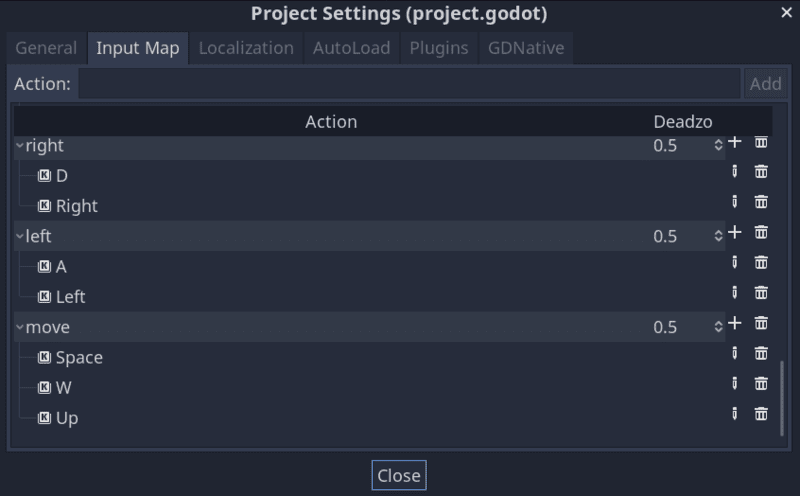
The AnchorCamera2D should be a child of our Player to follow it by default, using the owner variable. To detect Anchor2D nodes, we also instantiate AnchorDetector2D.
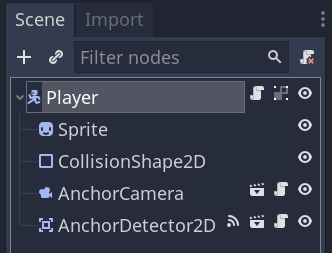
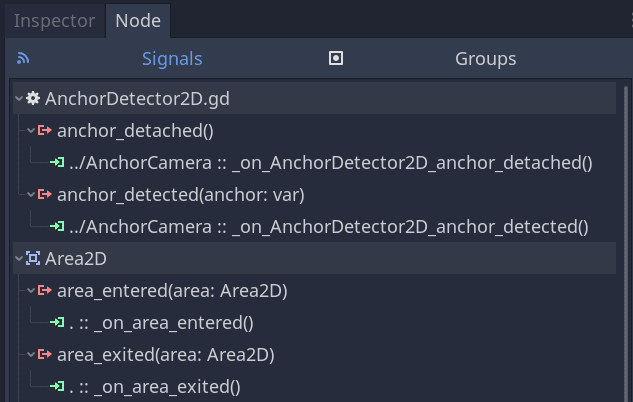
We need to connect the signals anchor_detected and anchor_detached from AnchorDetector2D to the methods on_AnchorDetector2D_anchor_detected and on_AnchorDetector2D_anchor_detached of AnchorCamera2D.
And that is it!
With the connections done and some anchor areas in the level, the camera dynamically moves between the player and other areas of interest.
Don't stop here. Step-by-step tutorials are fun but they only take you so far.
Try one of our proven study programs to become an independent Gamedev truly capable of realizing the games you’ve always wanted to make.
Get help from peers and pros on GDQuest's Discord server!
20,000 membersJoin ServerThere are multiple ways you can join our effort to create free and open source gamedev resources that are accessible to everyone!
Sponsor this library by learning gamedev with us onGDSchool
Learn MoreImprove and build on assets or suggest edits onGithub
Contributeshare this page and talk about GDQUest onRedditYoutubeTwitter…
Site in BETA!found a bug?