Godot 4.6: What changes for you
2026/01/09
- Type
- Learning Resource
- Format
- Study Guide
- Version
- Godot 4.x
- Code
- MIT
- Game Assets
- CC BY-NC-SA
- All else
- 2016-2026, GDQuest© - All rights reserved
- Created
- Updated
- 2026/01/09
- 2026/01/09
This is a quick reference guide for Godot 4.6. If you're wondering "what do I need to do differently now?" or "will my project still work?", you're in the right place. This cheat sheet is specifically about the subset of changes and features that could impact your daily work.
For each topic, we explain what changed, what it means for you, or what stays the same. If something in your workflow doesn't appear here, it probably works exactly like it did before (if not, please let us know!).
You can read from start to finish or jump to the sections that matter for your project. It'll give you a good idea of what to expect when you upgrade.
Godot 4.6 brings many UX improvements to make everyday development more comfortable while keeping the engine's core concepts and workflows intact.
This means two important things for you:
First, everything you already know still works. Your GDScript code, your shaders, your project structure, all of it remains valid.
Second, you get improvements that make your daily work faster and more pleasant: the editor looks cleaner, docks are more flexible, and many small annoyances are fixed. Some things like 3D physics and rendering did get big upgrades but they're behind the scenes so your projects benefit from them without you having to do anything.
Note that GDQuest courses and learning resources work the same with Godot 4.6 because the core concepts haven't changed. We'll also update our courses and the corresponding interactive practices to Godot 4.6 in the weeks following the release, with changes to relevant lessons to highlight the engine's latest improvements. As always, you can expect us to keep refining and updating the curriculum over time.
If you're currently working on a project in 4.5 and everything works well, you don't need to rush to upgrade. Finish what you're doing first, then consider upgrading between projects. Generally, unlike other big general purpose engines or frameworks, Godot tries to minimize breaking changes and allows upgrading to the latest version fairly smoothly. And the further we go into the Godot 4 release cycle, the more the foundations and features you use most often consolidate. However, game engines are complex beasts and you always want to test extensively after an upgrade.
To give you an idea, I upgraded all GDQuest course projects to the latest version: over 20 projects with tens of thousands of lines of code, thousands of files and assets, and it's only taken a couple of days of work, testing included.
You should always make sure that:
Note for backups: when you first import a project in Godot 4.6 from the project manager, Godot will offer to back it up for you (if you don't use a version control system). Click the checkbox to make the backup.
For new projects, I recommend starting with 4.6 to get all the latest improvements and defaults right from the beginning. Notably, new projects in 4.6 use Jolt physics by default for 3D physics, and this physics engine is a big step up in quality and performance compared to Godot's own physics engine, Godot Physics.
Before you upgrade, back up your project. And if your game uses glow effects, take some screenshots or record a short video of how it looks now. That way you can compare after upgrading and tweak your settings if needed.
This release thankfully has very few breaking changes. The main one affects the glow post-processing effect, which is notably much faster on mobile devices. It was also changed to use the screen blending mode and take place before tone-mapping.
The changes to glow allow for a more consistent look across rendering backends and also make it so when you add HDR display support in your game, the new defaults set you up for success. If you use glow in your project, your scenes might look a bit different after upgrading. I recommend taking screenshots of scenes that use glow with a fixed camera before and after upgrading to compare side by side.
There's also a technically breaking change to quaternions. They used to initialize to zero in some cases, which doesn't represent a valid rotation. Now they always initialize to identity, which means no rotation applied. This is technically breaking, but there are very low chances it affects your projects.
If you encounter more breaking or unexpected changes in your projects, it would very helpful to let us know so we can update this guide for everyone!
This section groups everything that changed in the editor: the look and feel, layout options, and new features that affect your day-to-day use of the editor.
When you open Godot 4.6 for the first time, you'll notice the editor looks different. Don't worry: everything works exactly the same way. Buttons, menus, and tools are all in the same places as before. I recommend giving your eyes some time to adjust before you decide if you like it.
The new default theme is called "Modern" and it replaces the previous blue-tinted look with cleaner lines, reduced clutter, and a grayscale color scheme.
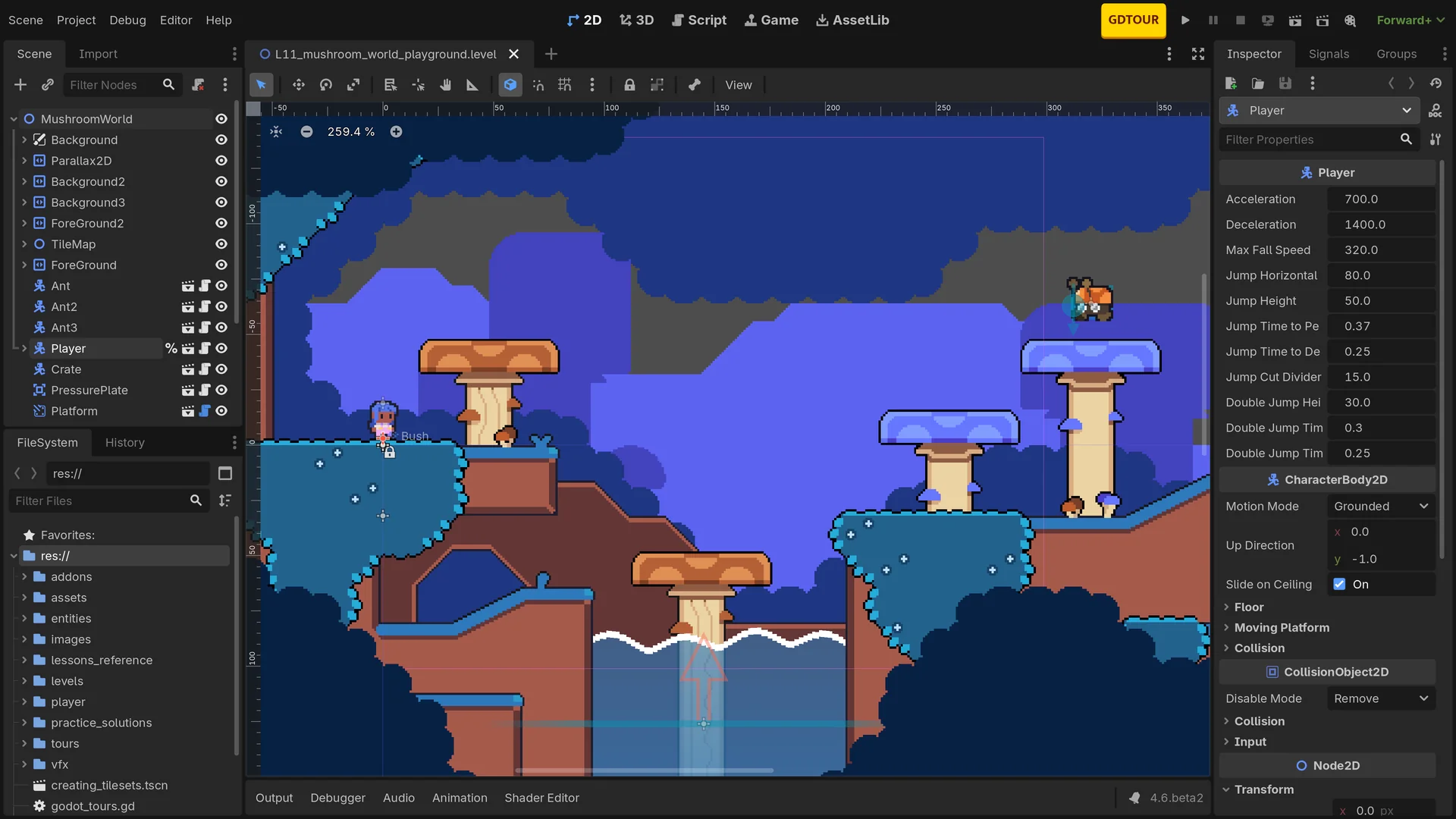
It started as a popular community addon called "Godot Minimal Theme" by passivestar. The goal behind the redesign is to remove excess UI decorations and make many adjustments to contrast, spacing, and more to help with focus and notably reduce excessive scrolling in long lists. The grayscale lets you do color-sensitive work without the blue tint affecting your perception.
If you prefer the old look: Go to Editor → Editor Settings → Interface → Theme
If you were using the Minimal Theme in Godot 4.5: You don't need the custom Godot Minimal Theme anymore and you should to unset it in your editor settings. Go to Editor
Godot 4.6 gives you more control over where panels and docks appear in the editor. The bottom panel (output, debugger, audio, animation, and so on) is now part of the docking layout, and most docks can become floating windows that you can move to a second monitor.
You can now drag and drop docks between locations. When you drag a dock, you'll see a blue outline preview showing where it will land. This makes the visual feedback much clearer than before so you know exactly where docks will land.
There are also new keyboard shortcuts to quickly show or hide panels. For example, Alt + O toggles the Output panel, and Alt + S opens the Shader editor.
There are a few limitations to know about: The docking is not fully unified yet. Some panels can only live in certain spots. For example, you cannot move the Animation or Shader editors to the side docks, and the Scene dock cannot go to the bottom. The FileSystem dock is the main exception: you can move it freely between the sides and the bottom.
Most bottom panels can become floating windows, except for the Debugger. And while floating windows work, some panels don't adapt their layout well to different shapes yet, so your experience may vary.
The default layout hasn't changed, so everything is where you expect on a fresh install. To dock a floating window back into the editor, just close it. All the same docks and panels exist, you just have more options for where to put them.
When you select a resource like a texture or material through the Quick Open dialog, you can now see it applied to your scene in real time as you browse the list.
For that, first make sure that the Live Preview checkbox at the bottom of the dialog is enabled. Then, click through the list of available resources and the change will reflect live in the viewport. This works for all kinds of resources, like textures, materials, fonts, UI styleboxes, and more generally all visual resources.
You can now drag a resource from the FileSystem dock directly into the script editor to create an @export variable automatically. Godot generates the variable declaration with the correct type and assigns the resource path for you.
This saves time when you need to expose resources like textures, audio files, or packed scenes in the inspector. Instead of typing the export annotation, the type hint, the variable name, and then assigning the path manually, you drag and drop and clean up the generated name.
Godot 4.6 brings several improvements that speed up your debugging workflow.
Click errors to jump to the source: When an error or warning appears in the Output panel, you can now click the file path to open the script directly at the problem line. If you use an external code editor, Godot can open it there instead. No more copying line numbers and manually searching for the problem.
Slow down or speed up your running game: When testing your game from the editor, you can now adjust the game speed on the fly. This helps when you need to inspect fast physics interactions or step through gameplay logic without adding debug code. Look for the speed controls in the debugger toolbar while your game is running.
Step out of functions: The debugger now has a "step out" option alongside step into and step over. When you're inside a function and realize the bug isn't there, you can step out to return to the calling code immediately. You no longer have to click through every remaining line just to exit the function.
These changes work together to help you find and fix bugs faster. You spend less time navigating to problems and more time solving them.
You can now snap to specific angles while orbiting the camera in the 3D view. This makes it easier to position your camera precisely, for example when you want to look at your scene from exactly 45 degrees or align with a specific axis.
To use this, press the alt key on your keyboard and orbit the camera view when you're close to the front, top, or three-quarter views. The camera will snap automatically to the corresponding orthographic view.
There's a new "Select Mode" in the 3D viewport that shows your selection without displaying the transform gizmo. This is useful when you want to select objects without the risk of accidentally moving them. It was a bit painful at times to select another node near the transform gizmo.
The previous "Select Mode" has been renamed to "Transform Mode" and got a new icon to better reflect what it does.
In this clip, I first select and click and drag over a model with the Transform Mode which moves the beetle. Then I use the Select Mode and try to do the same operations which only box selects but never moves anything:
All transform tools otherwise work as before. You can activate new Select Mode by pressing v, while the Transform Mode (former Select Mode) remains mapped to q.
On the physics front, the big change is that Jolt physics has become the default physics engine for 3D games.
New projects in Godot 4.6 use Jolt physics by default for 3D. This is a big deal because Jolt is the same physics engine used in major games like Death Stranding 2, and it's now considered production-ready in Godot (no longer marked as experimental).
Note that 2D physics still uses Godot Physics 2D, and existing projects that you upgrade to 4.6 keep their current physics engine: nothing changes automatically when upgrading.
For new projects: You don't need to do anything special. Jolt is already selected and the API is almost the same as Godot Physics.
For existing projects: Your project keeps using whatever physics engine it was already using. If your project is far along and works well, stick with your settings unless you have major simulation stability problems.
You can switch between Jolt and Godot Physics in the project settings by going to Physics
Why consider Jolt? It offers better performance and simulation stability. It's been proven for large games, and you get these benefits without learning anything new.
Differences with Godot Physics: Because Jolt is a different physics engine, even if Godot's API remains the same, there are some differences in the more advanced features. Most notably, some physics joint node properties only work with Godot Physics (like damp on the HingeJoint3D node). But if you use an unsupported property, you'll see a warning in the debugger's errors tab at runtime.
Also, Jolt uses different algorithms internally. Out of the box, physics simulation tends to be more stable than Godot's own 3D physics engine. Because the algorithms differ, things like how collisions are resolved will behave differently. For example, Jolt has features to mitigate ghost collisions (collisions that happen in unintended places, especially when you have multiple collision shapes with edges touching).
You can find, control, and learn about many settings unique to Jolt by going to Physics
Finally, some features are not supported in Jolt, like applying wind and gravity from areas to soft bodies. For more detailed technical information, check the official documentation on using Jolt physics.
Godot 4.6 brings back a complete Inverse Kinematics (IK) feature-set for 3D. This allows you to dynamically adjust skeletons at runtime, for example to make character feet plant on uneven ground, have arms reach for objects naturally, or make chains of bones follow curves and targets.
If you used Godot 3, you might remember IK was available there with limited control. It was removed during the 4.0 transition, and now it's back with a modern design that fits the new skeleton modifier workflow.
Several IK options used in different kinds of 3D games are included: CCDIK, FABRIK, Jacobian IK, Spline IK, and two-bone IK.
If you were using third-party plugins or workarounds for IK: You can now switch to the built-in nodes instead.
If you've never used IK before: Don't worry about learning this right away. This is new functionality you can pick up when your project needs it. Typically when you want 3D characters to interact with their environment more naturally.
To access IK options, you'll have to start from a 3D scene with an animated model and a Skeleton3D node. You can then apply modifiers to the skeleton to dynamically adjust limbs at runtime. Look for modifiers with "IK" in the name, like ChainIK3D, TwoBoneIK3D, etc. These all work with SkeletonModifier3D, which is Godot 4's approach to modifying skeletons at runtime.
The animation editor received several small but welcome improvements that make common tasks faster:
On the rendering front, this update brings more stability and performance, generally speaking. Screen space reflections have been rewritten to be faster and look better. Glow on mobile is much faster. 2D batching is faster. Reflection probes are more efficient too.
Your workflow doesn't quite change, but there are two notable differences to be aware of.
Glow got some important changes in Godot 4.6. It now processes before tonemapping instead of after, and the default blend mode changed to "screen". The AgX tonemapper also has new controls for white point and contrast.
What does this mean for you? Scenes with glow effects will likely look slightly better, but different from before. Bright colors should appear more natural and consistent across different rendering backends.
Before you upgrade, take screenshots or record a short video of your project in Godot 4.5. This way you can compare side by side and see exactly what changed.
If your lighting looks off after upgrading, check your glow settings in your WorldEnvironment node or Camera3D environment resource. Look at the blend mode and intensity first. In my tests the new defaults generally produce slightly weaker and more natural glow. You may need to crank up the levels or intensity if you want the same look as before.
On Windows, Godot 4.6 now uses Direct3D 12 as the default rendering backend instead of Vulkan.
You don't need to do anything. This change is transparent and your projects should just work. The main benefit of this change is better compatibility with Windows computers, especially those with older or buggy Vulkan drivers. While Vulkan was meant to be the cross-platform standard, in practice some Windows systems had issues that made Direct3D 12 a more reliable choice.
Before Godot 4.6, you could only rotate tiles that came from a texture atlas. If you used scenes as tiles, you were stuck with a single orientation. This meant making rotated copies of your scenes or placing scene instances outside the tile map to work around the limitation.
Now you can rotate scene tiles directly in the TileMapLayer, just like atlas tiles. You still can't modify properties of individual scene instances on the tile map, but at least you have control over their rotation. This gives you more flexibility when building levels with scene tiles.
In Godot 4.6, focus for mouse and touch input is handled separately from keyboard and gamepad focus. This changes how focus highlighting appears on UI controls.
When you click a button with your mouse, you won't see the same focus rectangle that appears when you navigate to it with a gamepad. This matches how modern games handle mixed input and gives you more control over visual feedback.
If you're building UIs that support both mouse and gamepad: You now have better control over how focus appears for each input method. Your players will see clearer visual feedback that makes sense for how they're playing.
For most projects, your UI code continues to work exactly as before. This change mainly matters if you're doing custom focus styling or want to polish how your UI responds to different input types.
You can now customize TabContainer tabs directly in the editor. This makes it faster to set up and adjust tabbed interfaces without writing code or switching between different windows.
The tab customization options appear when you select a TabContainer node in the scene tree.
There aren't too many changes to scripting languages in this update. Overall, whether it's GDScript or C#, you'll still do things the same way as before.
When debugging your code, you can now step out of functions. This completes the current function and pauses at the line that called it.
Before this update, you could step into functions or step over them line by line and skip over a function call. Now you have a third option: step out. This is useful when you step into a function by mistake or realize the bug isn't in the current function. You don't have to step through the function line by line until you complete it anymore.
CSV translation files got two major improvements in Godot 4.6: context columns and plural form support.
Context columns let you add notes to help translators understand where and how you use each piece of text. This is especially helpful when the same English word needs different translations in different situations. For example, "letter" as in the alphabet may need a different translation than "letter" as in a document you send to someone.
Also, plural forms are now supported directly in CSV files. Different languages handle plurals in different ways. Some languages have only one plural form, others have two or more. Godot now accounts for these differences when you work with CSV translations.
Last but not least, you can directly export translations using a template that will just work in Godot.
Before Godot 4.6, you had to use the gettext (.po) format for plural support and context. Gettext is powerful but usually requires dedicated translation programs to work it with efficiently. If your game has a small number of labels to translate, working with CSV files and spreadsheets is much more straightforward.
On Android, you can use Gradle to build and deploy your games. Gradle is a complex build system that handles compiling your code, packaging assets, and creating the final APK file for your game, which is standard on Android devices. You use it most notably to add support for third-party proprietary features like Google ads or in-app purchases through Google Play.
You can now run Gradle builds directly from Godot on Android devices using a companion app. Before this update, you had to export your project and install it manually on your device, or set up a full Android development environment on your desktop. Now you can press a button in the editor and your game builds and runs on your connected Android device.
This speeds up the workflow for those of you developing directly on Android!
When you deploy your game to an Android device, you can now mirror the screen on your computer and control the game directly from the Godot editor. This uses scrcpy (screen copy), a tool that streams your Android screen to your PC and lets you interact with it using your mouse and keyboard.
Before Godot 4.6, you could use scrcpy separately as an external tool. Now it's built directly into the editor as a one-click option. This makes testing on Android devices much more convenient because you don't need to pick up your phone or tablet every time you want to test something.
To use this feature, click the remote deploy icon at the top right of the editor, then turn on the checkbox next to "Mirror Android devices". Your device screen will appear in a window on your computer, and you can click and type as if you were using the device directly.
The embedded game window now works on Wayland. Wayland is a modern display server protocol for Linux that aims to replace the older X11 system, and it's become the default on many Linux distributions.
When you press the play button in the Godot editor on Linux, the game window can finally appear inside the editor itself, just like on other operating systems. Before this update, the embedded window only worked on X11. If you used Wayland, the game would always open in a separate window instead. This was one of the last major features needed for Wayland to match X11 support in Godot.
Godot 4.6 adds support for OpenXR 1.1, but the good news is that you don't need to change anything in your workflow as it's mostly a maintenance release that moves optional XR features into the core specification.
For you as a developer, when a device supports OpenXR 1.1, it guarantees you that certain features are supported. The most notable one is the surface grip pose (previously also called the palm pose). This lets you position virtual hands reliably in VR when hand joint tracking is not available. There are also updates to the detection of VR controllers. For example, you can now tell apart Quest 1, 2, 3, and Pro touch controllers.
The team implemented OpenXR 1.1 support so that if a headset doesn't support it, Godot falls back to OpenXR 1.0 and enables as many extensions as possible to give you as many features as possible. This makes supporting the different XR devices as easy as possible for you as a Godot user.
Godot 4.6 adds support for spatial entities, a collection of standardized OpenXR extensions that let your app understand the real world and anchor virtual objects in physical space.
Before spatial entities became a standard, different vendors like Meta and Google each made their own proprietary solutions. Spatial entities aim to unify these features and offer APIs that work across different headsets.
Godot XR maintainer Bastiaan Olij ran me through the currently supported features in Godot 4.6:
The marker tracking feature is now available across more devices than before thanks to this standard. More features like furniture detection are still only available through Meta's Scene Discovery API, but they will become part of the standard in future updates as spatial entities expand.
Just like with OpenXR 1.1, this does not change your workflow much. But by participating in the wide adoption of the standard, Godot helps to unify features across XR device vendors.
If you create editor plugins with dockable panels, there's a new EditorDock class that gives you more control over how your dock behaves.
EditorDock is a specialized container node for plugin docks. It extends MarginContainer with extra features for the editor. You can use it to tell Godot which layouts your dock supports. For example, if your dock only works as a vertical panel, you can specify that it should only appear in the side docks and never be undocked like so:
available_layouts = DockLayout.DOCK_LAYOUT_VERTICALIf you want to allow undocking but only in vertical layouts, you can do this:
available_layouts = DockLayout.DOCK_LAYOUT_VERTICAL | DockLayout.DOCK_LAYOUT_FLOATINGNote that you cannot create an EditorDock node directly in the Scene dock. You need to create a script that extends EditorDock and attach it to a MarginContainer node.
This change is backward compatible! Your existing plugins continue to work without changes. New plugins can use EditorDock to keep their dock UI code more organized in a dedicated scene and script.
Check the EditorDock class reference in the editor for more information.
You can now register new keyboard shortcuts through the EditorSettings object in your plugins. This lets you expose plugin commands that feel like native editor actions and appear in the shortcuts tab of the editor settings.
Before Godot 4.6, adding custom shortcuts was left for you to implement and required hard-coded workarounds that were not user-friendly.
Call add_shortcut() on the EditorSettings object to register your shortcuts:
var event := InputEventKey.new()
event.keycode = KEY_I
event.ctrl_pressed = true
event.alt_pressed = true

var shortcut := Shortcut.new()
shortcut.events = [event]

EditorInterface.get_editor_settings().add_shortcut("gdquest_gdscript_formatter/format_code", shortcut)
This code from the GDScript Formatter creates a new shortcut in a category named "Gdquest Gdscript Formatter." The shortcut is named "Format Code" and is mapped to Ctrl+Alt+I
This makes it easier for users to discover your plugin's shortcuts and customize them to fit their workflow. The shortcuts you register appear in the editor settings alongside built-in shortcuts, so users can view and rebind them as needed.
Check the EditorSettings class reference in the editor for details on how to register shortcuts in your plugins.
GDQuest's gamedev curriculum is always up to date.
Try one of our proven study programs to become an independent Gamedev truly capable of realizing the games you’ve always wanted to make.
Get help from peers and pros on GDQuest's Discord server!
20,000 membersJoin ServerThere are multiple ways you can join our effort to create free and open source gamedev resources that are accessible to everyone!
Sponsor this library by learning gamedev with us onGDSchool
Learn MoreImprove and build on assets or suggest edits onGithub
Contributeshare this page and talk about GDQUest onRedditYoutubeTwitter…
Site in BETA!found a bug?