The Events bus singleton
2021/03/30
- Type
- Learning Resource
- Format
- Study Guide
- Version
- Godot 3.x
- Subject Tags
- Code
- MIT
- Game Assets
- CC BY-NC-SA
- All else
- 2016-2026, GDQuest© - All rights reserved
- Created
- Updated
- 2021/03/30
- 2021/03/30
We use a pattern on almost every project at GDQuest: a singleton that only emits signals.
We call it the "Events Autoload" or events bus and have a video tutorial dedicated to it: Smarter Godot Signals with the Event Autoload pattern.
It allows one node to react to a global event in the game or an event triggered by a node that's very far from it in the node tree, and that without having to connect the two nodes directly.
It is handy when you don't have an easy way to pass a reference from one node to the other to connect in the code or when you can't use the editor to connect them. For example, if you instantiate UI elements at runtime.
We use it when we don't have an alternative that is simpler to manage, like node groups or a direct signal connection in a small number of steps, as discussed in the previous lesson.
The advantage is it allows you to keep distant objects that need to communicate with one another decoupled at a low cost.
The main disadvantage is that you bundle a bunch of unrelated signals into a single object. You don't want to use this all over the place because you have to search your entire codebase whenever you have to track an event signal. You'll have to see for yourself how many signals you can and want to handle using this pattern. We found that even with dozens of signals on a single node, it is still fairly easy to keep track of the connections.
You just need three steps to create or implement this pattern.
Events.connect("signal_name", self, "_on_Events_signal_name").From any script in your project, you can then write Events.emit_signal() to emit the corresponding signal.
Here's a concrete usage example from the JRPG series. You will find more information and examples of this pattern in the course.
# Event bus for distant nodes to communicate using signals.
# This is intended for cases where connecting the nodes directly creates more coupling
# or increases code complexity substantially.
extends Node

# Emitted when hovering a UIActionButton. The UIBattlerHUD uses this to display a preview of an
# action's energy cost.
signal combat_action_hovered(display_name, energy_cost)
# Emitted during a player's turn, when they chose an action and validated their target.
signal player_target_selection_done
In the series, we instantiate some UI components at run-time. For example, we create a new instance of the action menu on every battler's turn. This ensures the menu is initialized correctly in its default state every time we need to display it.
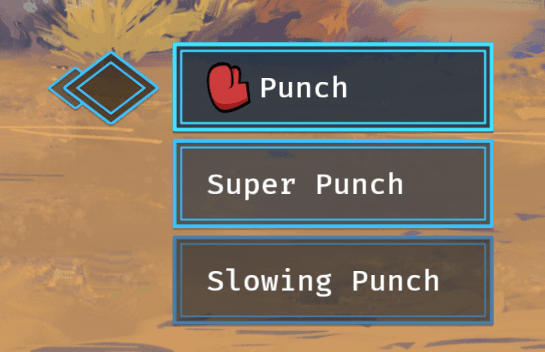
The thing is, that menu, UIActionMenu, and the character's heads-up display to which we need to connect it are in different node tree branches, so it's cumbersome to connect them every time we need that menu.
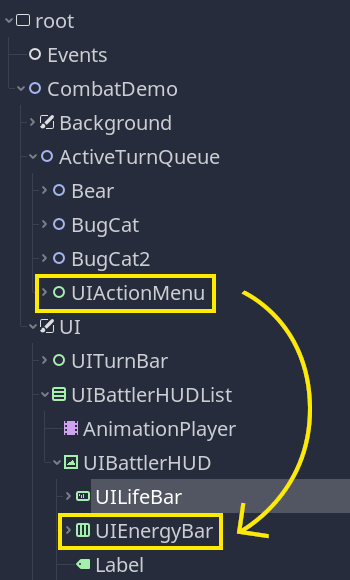
The image above shows the remote scene tree while the game is running. You can see the Events singleton at the top. In the editor, you don't have the UIActionMenu and you don't have direct access to the UIEnergyBar to which you need to connect it.
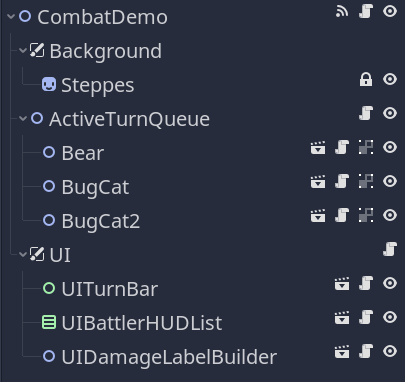
To connect them without the singleton, you'd need to:
To do so without breaking encapsulation and keeping sane programming practices, you may need to add code in four different scripts. Imagine you need to refactor the code later and move the node. The steps could easily increase.
With the events bus pattern, you only need to add code in two places instead. And in case you need to refactor, nothing changes, nothing breaks.
Hopefully, this example illustrates the pattern's benefits.
The event bus pattern shines most when you're generating UI at runtime and can't connect nodes in the editor. In Module 7 of Learn 2D Gamedev From Zero, you learn to create buttons in code and connect signals to lambda functions and closures. In Module 8, you go further and use the bind method to pass data through dynamically connected signals, exactly the kind of technique you need to make the most of a pattern like this one.
Don't stop here. Step-by-step tutorials are fun but they only take you so far.
Try one of our proven study programs to become an independent Gamedev truly capable of realizing the games you’ve always wanted to make.
Get help from peers and pros on GDQuest's Discord server!
20,000 membersJoin ServerThere are multiple ways you can join our effort to create free and open source gamedev resources that are accessible to everyone!
Sponsor this library by learning gamedev with us onGDSchool
Learn MoreImprove and build on assets or suggest edits onGithub
Contributeshare this page and talk about GDQUest onRedditYoutubeTwitter…
Site in BETA!found a bug?