Volume Slider
2020/07/18
- Type
- Learning Resource
- Format
- Tutorial
- Version
- Godot 3.x
- Subject Tags
- Code
- MIT
- Game Assets
- CC BY-NC-SA
- All else
- 2016-2026, GDQuest© - All rights reserved
- Created
- Updated
- 2020/07/18
- 2020/07/18
Let's see how to let players control your game's audio volume with sliders. You can use that in your game's audio settings, both on desktop and mobile platforms.
There's a dedicated node built into Godot: the HSlider.
Create a new scene with an HSlider and rename it to VolumeSlider. In the Inspector, set the node's Max Value to 1.0 and the Step to a low value like 0.05. Doing so makes the slider produce values ranging from 0 to 1 in increments of 0.05. Here, we want a value of 1 to represent 100% audio volume or -0 dB.
Audio volume is measured in decibels (dB), a logarithmic scale. An increase of three dB doubles the volume, so it's hard to work directly with this scale. GDScript has two built-in functions to help us turn decibels into a linear scale in the [0.0, 1.0] range and back: db2linear and linear2db.
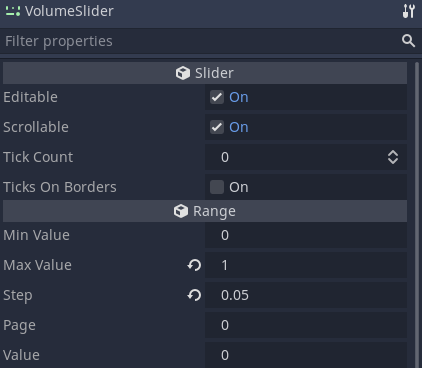
Add a new script to the VolumeSlider node.
The idea here is that we sync the VolumeSlider > Value to an Audio Bus volume. So we need to know which Audio Bus it syncs to. For that, we can export a String variable that represents the Audio Bus name. You can access and manage audio buses on the Audio tab at the bottom of the editor. From there, you know the name of the Audio Bus you want to sync. By default, the VolumeSlider syncs to the "Master" bus.
extends HSlider


export var audio_bus_name := "Master"

onready var _bus := AudioServer.get_bus_index(audio_bus_name)


func _ready() -> void:
	value = db2linear(AudioServer.get_bus_volume_db(_bus))


func _on_value_changed(value: float) -> void:
	AudioServer.set_bus_volume_db(_bus, linear2db(value))
Since we can only set the volume of an Audio Bus using its index, we need to retrieve its index by requesting the Audio Server to find the Audio Bus index using the audio_bus_name. We can do that using an onready variable.
Right when the slider is ready, we sync its value to the Audio Bus volume, of course converting the volume to linear.
We need to change the bus volume every time our VolumeSlider value changes, so let's connect its value_changed signal to itself, here we renamed the signal callback to _on_value_changed.
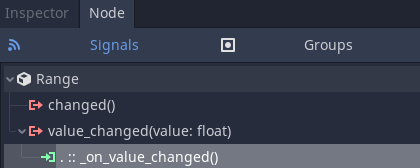
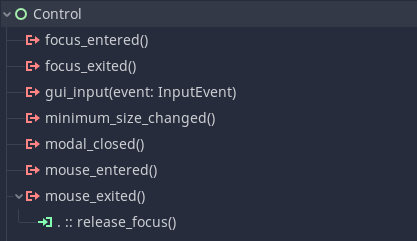
And there we have it, an easy way to allow players to interact with the game's audio. Now a quick tip: Sliders in Godot don't lose focus automatically when we stop interacting with them, which can cause some unexpected behaviors. Connect the mouse_exited signal directly to the built-in release_focus method to ensure that as soon as the mouse is out of the VolumeSlider, it loses focus and stops consuming inputs.
You can download our open-source sample project in the Godot mini demos repository. It is in the audio/volume-slider directory.Don't stop here. Step-by-step tutorials are fun but they only take you so far.
Try one of our proven study programs to become an independent Gamedev truly capable of realizing the games you’ve always wanted to make.


Get help from peers and pros on GDQuest's Discord server!
20,000 membersJoin ServerThere are multiple ways you can join our effort to create free and open source gamedev resources that are accessible to everyone!
Sponsor this library by learning gamedev with us onGDSchool
Learn MoreImprove and build on assets or suggest edits onGithub
Contributeshare this page and talk about GDQUest onRedditYoutubeTwitter…
Site in BETA!found a bug?