Make your First 2D Game with Godot
2020/06/22

- Type
- Learning Resource
- Format
- Tutorial
- Version
- Godot 3.x
- Downloadable Demo
- Code
- MIT
- Game Assets
- CC BY-NC-SA
- All else
- 2016-2026, GDQuest© - All rights reserved
- Created
- Updated
- 2020/06/22
- 2020/06/22
NEW: We have newer and better free resources to get you started with Godot 4:
- Learn GDScript From Zero: A free interactive app to learn GDScript, Godot's scripting language, from scratch. Start here if you are new to programming.
- Your first 2D game with Godot 4: Learn Godot 4's essential features and make a fun rogue-lite mini game in one sitting.
- Your first 3D game with Godot 4: After your first 2D game, this project takes you further and teaches you Godot's 3D tools through a small arena FPS.
Learn to create your first 2D game with Godot, from scratch! In this free video series, you'll get started with Godot while creating a platformer game.
If you haven't already, you can download the project's assets on the project's repository (look for the file start-assets.zip).
There is a missing segment at 32:21, where I changed the project's window settings. These settings control the resolution and the way the game window scales. Here's how to change them.
Go to the menu Project -> Project Settings.
In the left column, scroll down to Display -> Window, and click on Window to open the window settings on the right side.
Here are the settings I changed. In the size section at the top, these settings control the resolution of the game and size of the window:
192010801280720Then, scroll down to the stretch section and set:
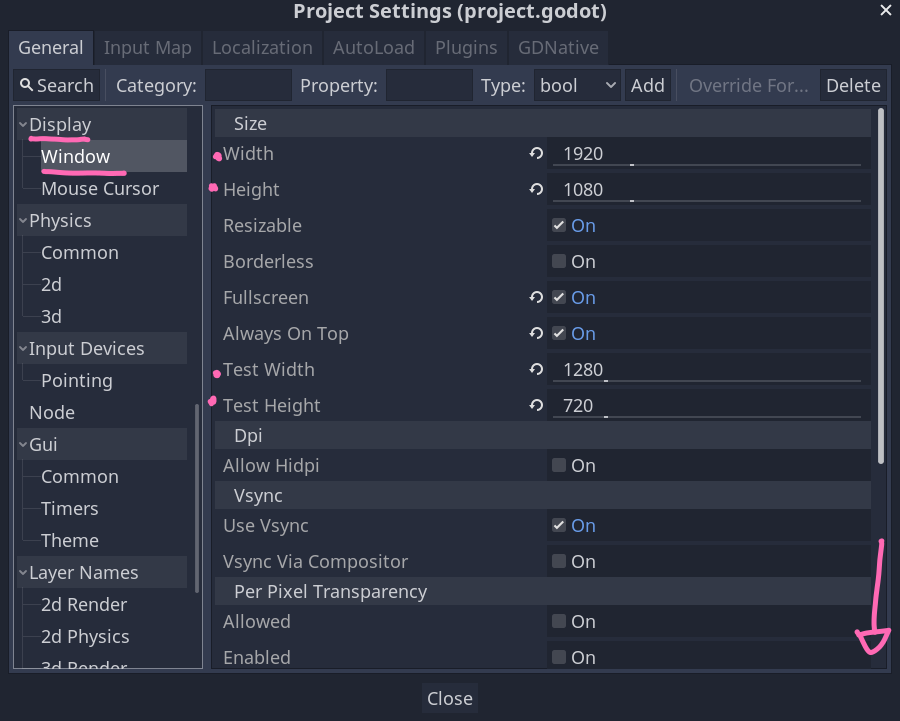
These two settings will make the game viewport resize with the window. Without them, when you increase the window size, more of the game level would show. The expand aspect setting makes it so when you change the ratio of the window, it shows a little more or less of the game world to preserve the proportions of the game sprites. You can play with these settings to see the differences they make.
At 1:02:26, the line 13 of Player.gd changes: the value 1.0 turns into 0.0, but it's not mentioned in the video.
You should also change this value. The line should be:
-Input.get_action_strength("jump") if is_on_floor() and Input.is_action_just_pressed("jump") else 0.0In this video, you will get to create collectible coins that increase your score, portals that teleport the player between levels, and will do level design so you can test your character, your enemy, and have fun with it.
Through this, you will get to see the tilemap and learn one way to do level design in Godot. You will use the Area2D node for collectibles, learn about changing scenes at runtime, and more.
This third part focuses entirely on the user interface and gives the player the ability to pause the game, which you will need to do in pretty much every project.
Don't stop here. Step-by-step tutorials are fun but they only take you so far.
Try one of our proven study programs to become an independent Gamedev truly capable of realizing the games you’ve always wanted to make.
Get help from peers and pros on GDQuest's Discord server!
20,000 membersJoin ServerThere are multiple ways you can join our effort to create free and open source gamedev resources that are accessible to everyone!
Sponsor this library by learning gamedev with us onGDSchool
Learn MoreImprove and build on assets or suggest edits onGithub
Contributeshare this page and talk about GDQUest onRedditYoutubeTwitter…
Site in BETA!found a bug?