Crossfade Background Music
2020/07/17
- Type
- Learning Resource
- Format
- Tutorial
- Version
- Godot 3.x
- Code
- MIT
- Game Assets
- CC BY-NC-SA
- All else
- 2016-2026, GDQuest© - All rights reserved
- Created
- Updated
- 2020/07/17
- 2020/07/17
In the background music tutorial, we saw how to keep the music playing when transitioning between game levels or screens.
What if we want to transition between two soundtracks smoothly? In this tutorial, you'll learn to crossfade two music tracks smoothly.
To achieve a crossfade effect in Godot, we need two AudioStreamPlayer nodes, one for each music track. Create a new scene with a node named BackgroundMusic. Add two AudioStreamPlayer and an AnimationPlayer node as its children. I've called the stream players Track1 and Track2. Leave them without a stream and set them to not autoplay as we will control them from BackgroundMusic_'s script.
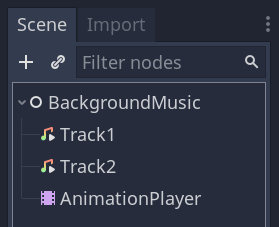
Let's start with the crossfade animations. We need two, respectively, to fade from track one to track two and vice-versa.
Animate the Volume dB property of the audio tracks. One node should animate from 0.0 to -80.0 dB, and the other from -80.0 to 0.0. For the track that ends the animation at -80.0 dB, add a track and keyframe that sets its Playing property to false.
Here is my animation FadeToTrack1:

And FadeToTrack2:

Note that you need to change the easing on the animation keys at the start of the animation. Because audio volume follows a logarithmic scale, linear interpolation will cause the music to fade out in a split second. Instead, we want them to blend for a moment.
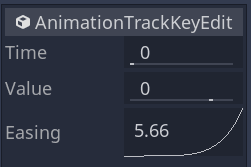
One curve should ease in, as on the image above, and the other ease out.
We need some code to play music and automatically fade from one track to the other. Internally, our BackgroundMusic Node should toggle between the two audio stream players. From the user's perspective, all we want is to call a function and let the fade happen magically.
Attach a script to BackgroundMusic and add the following code to it.
extends Node

# References to the nodes in our scene
onready var _anim_player := $AnimationPlayer
onready var _track_1 := $Track1
onready var _track_2 := $Track2


# crossfades to a new audio stream
func crossfade_to(audio_stream: AudioStream) -> void:
	# If both tracks are playing, we're calling the function in the middle of a fade.
	# We return early to avoid jumps in the sound.
	if _track_1.playing and _track_2.playing:
		return

	# The `playing` property of the stream players tells us which track is active.
	# If it's track two, we fade to track one, and vice-versa.
	if _track_2.playing:
		_track_1.stream = audio_stream
		_track_1.play()
		_anim_player.play("FadeToTrack1")
	else:
		_track_2.stream = audio_stream
		_track_2.play()
		_anim_player.play("FadeToTrack2")
You can use the script above by adding BackgroundMusic as an autoload in your project and calling BackgroundMusic.crossfade_to(). Note that the function takes an AudioStream.
audio/background-music-transition directory.Don't stop here. Step-by-step tutorials are fun but they only take you so far.
Try one of our proven study programs to become an independent Gamedev truly capable of realizing the games you’ve always wanted to make.
Get help from peers and pros on GDQuest's Discord server!
20,000 membersJoin ServerThere are multiple ways you can join our effort to create free and open source gamedev resources that are accessible to everyone!
Sponsor this library by learning gamedev with us onGDSchool
Learn MoreImprove and build on assets or suggest edits onGithub
Contributeshare this page and talk about GDQUest onRedditYoutubeTwitter…
Site in BETA!found a bug?