What does this error mean? Reading code errors in Godot
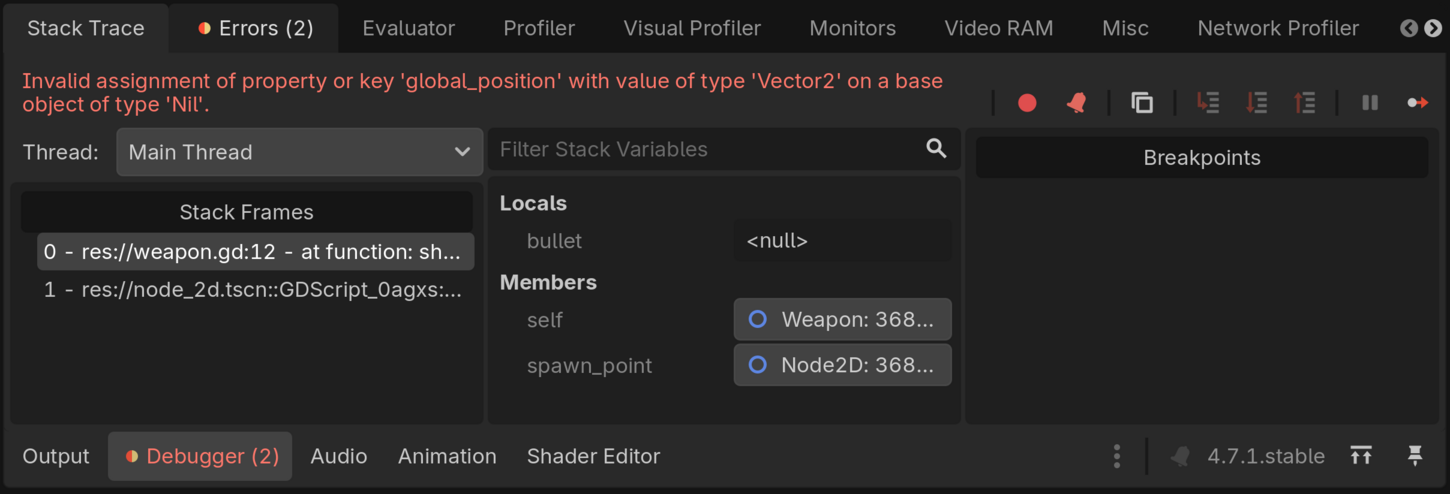
When Godot finds a problem in your code, it displays an error message in the Debugger bottom panel. It looks like this:
These error messages are there to help you, as we explained in Learn GDScript From Zero. Godot always does exactly what your code tells it to, but sometimes, what you tell it to do (your code) is not doing exactly what you think it is. When that happens, you get an error message: a hint to help you know that there is an issue in the code and where it is.
But errors can feel impossible to read at first because they use programming jargon and concise technical language. Programmers are not always the best at making things accessible, and many programming languages phrase errors in a way that takes learning and practice to understand.
You should still take errors as a helping hand and do your best to understand them! Errors mean that there is a mistake somewhere in your code and that the computer caught it. The computer is letting you know and giving you a starting point to troubleshoot.
In this guide, I will share a simple process to make sense of error messages that you can refer back to as you're learning. We will then apply it to a concrete example to understand how it works.
Nathan
Founder and teacher at GDQuest
How to break down and understand code errors
When you're getting started and still having a hard time understanding errors, you can follow these five steps to break them down and investigate the cause:
Identify everything that could go wrong: everything the code was trying to do on the line that caused the error.
Split the error message into smaller parts and rephrase it in your own words.
Narrow down which parts of the code caused the error.
Trace each problematic part back to where it came from.
Compare what the code expects with what it actually received.
It's probably abstract, so let's apply this process to a concrete example: the "null instance" error (also called a null reference error). It is the most common kind of error when getting started.
Breaking down a common error in Godot
Let's say that I have a weapon that shoots bullets. The weapon spawns a bullet and adds it to the game world in its shoot() function. Here is the weapon script:
This code loads the bullet scene and saves a reference to the scene in the BulletScene constant. The shoot() function defines a variable for the bullet, creates an instance of the bullet scene, adds the bullet to the game world, and changes the bullet's position to match the bullet spawn point's position.
But there is an error in this code: I defined the bullet variable, but I forgot to store the instance of the bullet scene in it! When I run the game and call the shoot() function, Godot gives me this error:
Invalid assignment of property or key 'global_position' with value of type 'Vector2' on a base object of type 'null instance'.
Let's apply the 5-step process for reading errors and work out what this message means.
Step 1: Identify everything the code was trying to do
Access the global_position member variable of the bullet value
Read the value of the spawn_point variable
Access the global_position of spawn_point
Assign the spawn point's global position to the bullet's global_position member variable
The error can be caused by something being incorrect in any of these operations.
Step 2: Break down the error message and rephrase what Godot says is wrong
Error messages are compressed descriptions of what went wrong when running the code. Just as we break down bigger problems into smaller ones that are easier to tackle in programming, when you try to understand an error, you want to take your time and break it down into smaller parts. Then try to rephrase each part in words that make sense to you.
We can break down the error message into four parts, from left to right:
"Invalid assignment"
An assignment means giving a value to something, here with the = operator. The code tried to assign a position to the bullet. Godot could not complete that assignment. This part of the message does not tell us why yet.
"property or key 'global_position'"
The second part tells us what the code tried to change. A property is a member variable that belongs to an object, like global_position or global_rotation for 2D nodes.
Why does it say property or key?
In GDScript, you can use similar notation to access member variables or to read values in a dictionary. For example, you could write this to read the spawning point's global position:
spawn_point["global_position"]
This reads the global position member variable just like spawn_point.global_position. When working with dictionaries, you can also use both the [] and . notation to access values:
var inventory :={"potions":5,"bananas":3,}var potions_count:int= inventory["potions"]var bananas_count:int= inventory.bananas
That's why the error says "property or key": Godot does not distinguish between what you are trying to access.
"with value of type 'Vector2'"
This part tells us what value we tried to assign. It's what's on the right side of the equality sign: spawn_point.global_position, a Vector2Vector2 value representing the spawn point's global position in the game world.
"on a base object of type 'null instance'"
Finally, the message tells us which object Godot tried to change. This is what's on the left side of the assignment: bullet.global_position. bullet is the variable referencing the "base object" here.
At this point, you can try translating the error into plain English. It means: "Your code tried to set the bullet's global position, but the bullet variable does not refer to anything: it contains nothing (null)."
Step 3: Narrow down which parts caused the error
In this step, you want to put on your detective hat and cross off all the operations from step 1 that are fine based on your understanding of the error message at this point.
Godot tells us that the problem was "on a base object of type 'null instance'". The "base object" in question is the bullet variable. So we can cross off the operations that involve the spawning point. We can also cross off reading the value of the bullet variable. The engine did read it, and it is null.
Godot expected the bullet variable to be a valid reference to a Bullet node. But instead the variable has the value null, which means that it does not refer to any valid object. There is no bullet for Godot to move.
Step 4: Trace the parts back to where they were defined or created
Next, we look at where we define the bullet variable. For variables and functions, you can press ctrl and left-click on the variable or function name to jump to its definition.
The code is short, so the issue may jump out at you, but in your projects, these lines may be spread across one large or even multiple large code files.
In this step, you first look at the Godot variable definition and then you want to look at all the lines of code that modify the variable. By looking at the bullet variable and the following lines, we see that the bullet variable is never modified. This is the root cause of the problem:
When you get an error, Godot highlights the line where it noticed a problem, but the cause of the error may be somewhere else in your code.
Nathan
Founder and teacher at GDQuest
Step 5: Compare what the code needs with what it contains
The code needs bullet to contain a reference to the new Bullet node, but bullet contains null. To correct that, we store the instance of the bullet scene in the bullet variable:
This is the main idea behind null instance errors. The code tries to access a property or call a function on an object, but the variable does not contain the object the code expects.
As you practice dissecting errors and tracing their causes, these steps will eventually become intuitive.
Actually, these steps are not only about understanding errors; they are also a debugging technique (debugging is the process of investigating, troubleshooting, and fixing problems in your code).
You could use these steps as a reference even when Godot does not display an error message. They are an essential part of becoming better at programming.
Nathan
Founder and teacher at GDQuest
Summary: A checklist for troubleshooting code errors
You can now see how the process works in practice. Here's a checklist that you can use and refer back to the next time you encounter an error you struggle with:
First, look at the line where Godot noticed the problem and identify every operation it was trying to run. It may be assigning a value, calling a function, accessing a member variable, etc.
Read the error message, break it down into smaller parts, and rephrase what Godot says is wrong in your own words.
Narrow down which parts of the code caused the error based on your own understanding of the error message and what the code is supposed to do.
Trace back each problematic part to where it was defined or created, then follow how it reached the line that caused the error.
Compare what the code expects with what it actually contains: all the values, variables, and expressions involved in the problematic part.
As with any programming skill, debugging becomes faster with practice. Take the time to break problems down and understand what is going on until the process becomes second nature. It may be tedious at first, but it will pay off in your ability to code independently in the future.
Take your understanding of code to the next levelin GDSchool
Your ability to read and understand errors, debug your code, and implement mechanics on your own is part of the core skills you need to become independent and not depend on tutorials. In Module 6 of Learn 2D Gamedev From Zero, you learn to use the code reference and Godot's debugging tools and use them to implement your first mechanics on your own. In Module 10, you create an entire game by yourself without step-by-step tutorials.